Automation QA Testing Course Content

Computer Basics And Parts

 What is a Computer?

an electronic device for storing and processing data, typically in binary form, according to instructions given to it in a variable program.

Parts of a computer with their functions

1. The computer case


This is the part that holds all of the internal components to make up the computer itself.

It is usually designed in such a manner to make fitting a motherboard, wiring, and drives as easy as possible. Some are designed so well that it is easy to make everything look tidy and presentable too.

Cases come in all different shapes and sizes to accommodate various types of computer components and to satisfy the needs of the consumer.

Design elements can vary from being plain to extremely elaborate. You can get a plain grey case or one that has colored lighting everywhere to make it looks spectacular.

Cases, like most things, vary in quality. You can get them made from cheap metals or from good quality materials that provide you with a sturdy design.


List of computer case sizes (known as form factor):

  • Very small form factor: Supports Mini ITX motherboards
  • Small form factor: Supports micro ATX motherboards.
  • Standard form factor: Supports standard ATX motherboards.
  • Larger form factors: Supports ATX and XL-ATX motherboards.

2. Motherboard

The motherboard is the main board that is screwed directly inside the computer case.

All other cards and everything else plugs directly into the motherboard, hence its name.

The CPU, RAM, drives, power supply and more all get connected to it.

Its function is to integrate all the components with each other so they can communicate and operate together.

A good motherboard offers a wide amount of connectivity options. It also has the least amount of bottlenecks as possible. This allows all the components to operate efficiently and to fulfill their maximum potential as they were designed to do.

Obviously, as the physical size of a motherboard is reduced, it begins to limit connectivity options and functionality.

Motherboards come in the following sizes:

MotherboardDimensions
Pico-ITX3.9 inch x 2.9 inch | 100mm x 72mm
Nano-ITX4.7 inch x 4.7 inch | 120mm x 120mm
Mini-ITX6.7 inch x 6.7 inch | 170mm x 170mm
Micro-ATX9.6 inch x 9.6 inch | 244mm x 244mm
Standard-ATX12 inch x 9.6 inch | 305mm x 244mm
XL-ATXEVGA: 13.5 inch x 10.3 inch | 343mm x 262mm
Gigabyte: 13.58 inch x 10.31 inch | 345mm x 262mm
Micro-Star: 13.6 inch x 10.4 inch | 345mm x 264mm

3. CPU: Central Processing Unit


The CPU is basically like the brain of a computer. It processes all the information on a computational level.

It takes information from the RAM and processes it to perform the tasks required from the computer.

It is usually seated in a socket that utilizes a lever or a latch with a hinged plate with a cut out in the center to secure it onto the motherboard.

It has many copper pads underneath it for the contacts of the socket to push up against them to make electrical contact.

There are other ways CPU’s can be attached to the motherboard.

Here are some common examples:

  • ZIF (Zero Insertion Force): Although this a more desirable socket, they are mostly found on older computer motherboards. A lever-operated a mechanism to clamp the pins of the processor.
  • PGA (Pin Grid Array): It is also a ZIF socket but has a different pin pitch and contains a different pin count.
  • LGA (Land Grid Array): More commonly found on motherboards today. A levered hinged plate with a center cut out clamps down on the processor.
  • BGA (Ball Grid Array): The CPU is soldered directly onto the motherboard. This makes it a non-user swappable part. It is susceptible to bad connectivity.

A processor generates a decent amount of heat, especially when it is working under high loads.

It will run even hotter when it is set to a higher clock speed in order to make it run faster. This is called overclocking.

This is why a heatsink and fan assembly is required in order to draw the heat away from the processor and distribute it to thin sheets or fins of metal for the fan to cool down.

There are so many different types of processors. The top manufacturers for computers are Intel, AMD, and NVidia.

4. RAM: Random Access Memory


RAM is a data storage device that can provide fast read and write access. RAM is also volatile which means that it loses all the stored data the moment power is lost.

The RAM keeps data ready for the CPU to process. The speed of the RAM is a big contributor to the overall speed of a computer.

It plugs directly into a long slot which has contacts on either side of the slot.

It too has a clock speed, just like a processor. So, it can also be overclocked to deliver increased performance beyond the intended specification.

Certain RAM modules are sold with a heat spreader. It helps dissipate the heat from the individual memory IC’s, keeping them cooler.

RAM has evolved like any other component. RAM used on the motherboard often makes use of DDR (Double Data Rate) SDRAM (Synchronous Dynamic Random Access Memory) type memory.

5. Graphics Card

A graphics card processes the data from the motherboard and sends the appropriate information to the monitor in order for it to be displayed.

It can do so using an HDMI, DisplayPort, DVI, or VGA connector.

A graphics card can also be referred to as a video card or a display card.

It takes the burden of all the video processing from the main CPU. This gives a computer a big boost in performance.

Because of the large processing requirements for a gaming graphics card, fans are almost a given.

A graphics card plugs into a PCI Express (Peripheral Component Interconnect Express) slot on the motherboard. It is a serial expansion bus slot that is capable of a high amount of bandwidth, in two directions.

A graphics card has a GPU (Graphics Processing Unit) which is the main component that requires cooling.

A GPU is slower than a CPU, but it is designed to deal with mathematical operations required for video rendering.

The amount of memory on the card varies depending on the manufacturer’s design.

Graphics cards use GDDR (Graphics Double Data Rate) SDRAM which is specially designed to be optimized for graphics performance.

GDDR is built to handle a higher bandwidth compared to plain DDR ram.

6. Sound Card

Most of the time the sound chip built into the motherboard is used for audio output.

But, if you are a sound enthusiast or prefer higher detailed audio while playing a game, you might be inclined to use a sound card.

Sound cards plug into a computer in multiple ways. It can be through USB, PCI slot, or PCI Express x 1 slot.

A sound processing chip on the card does all of the audio processing and is usually not a very powerful processor.

A sound card can offer a wide range of connectivity with various audio equipment.

A few examples could be optical audio, 1/4 inch jack, or RCA connectors.

7. Hard Drive

A hard drive is found in most computers. It’s usually a mechanical drive that stores all the data.

Apart from storing data, it can also be used as a boot drive in order to run the operating system from it.

An operating system is a software program that makes a computer useable. Like Microsoft Windows for example.

The biggest vulnerability of a mechanical drive is the physically fragile nature of it.

One bump the wrong way can destroy a whole drive.

A mechanical hard drive contains one or more platters that spin anywhere between 5200 to 10000 RPM (revolutions per minute). The read and write heads are spaced only about 0.002 (51 micro M) of an inch away from the platter.

This gives you an idea about the physical limitations regarding its fragile nature.

Small areas on the platter can be arranged to represent a 1 or a 0. It can be changed using the drive head to magnetically alter the material to represent the correct value.

8. SSD: Solid State Drive

An SSD is also a type of hard drive, but it doesn’t have any moving parts. It consists of a bank of flash memory that can hold a reasonable amount of data.

While SSD’s are increasing in size all the time, they aren’t cost-effective for storing large amounts of data.

A mechanical drive has a cheaper gigabyte to dollar ratio.

However, the SSD is a high-performance drive. It’s fast and cannot be as easily damaged by dropping it or taking a few knocks.

That’s why I always recommend SSD’s for portable type computers where possible. 

9. PSU: Power Supply Unit

A power supply mounts inside the computer case. This converts the AC mains supply from the wall socket and supplies the correct DC voltages to all the components inside the computer.

A computer power supply supplies the following voltages:

  • +3.3v: This voltage is supplied to the motherboard.
  • +5V: This voltage is supplied to the motherboard and other internal components.
  • +12V: This voltage is supplied to the motherboard and other internal components.
  • -12V: This voltage is supplied to the motherboard.

You get different wattage ratings for power supplies. The higher the wattage, the higher the amount of electrical current can be made available to parts that need it.

The higher you go in Watts, the more the power supply will be likely to cost.

A power supply also comes with its own cooling fan. This helps all the internal components to stay cool when the power supply is subjected to bigger loads.


10. Monitor


A monitor is what you use to see a visual representation of the graphics data sent from the graphics card of the computer.

There are various types of monitors on the market. The most commonly used is a LED-backlit LCD monitor.

There are also a variety of different sizes with different aspect ratios. The aspect ratio is simply the ratio between height and width.

For example, a 16:9 aspect ratio monitor will have 16 parts wide to 9 parts in height.

There are also curved monitors, but they are more expensive.

Monitors also have a fast response time in order to keep up with the high demands required to eliminate delays with user input for gaming.

11. Keyboard


A keyboard is one of the ways to communicate with a computer. By typing a key from the keyboard, it sends a small portion of data to tell the computer which key was pressed.

The computer can use this information in many ways. An example could be a command or a character that can be used in a document.


12. Mouse
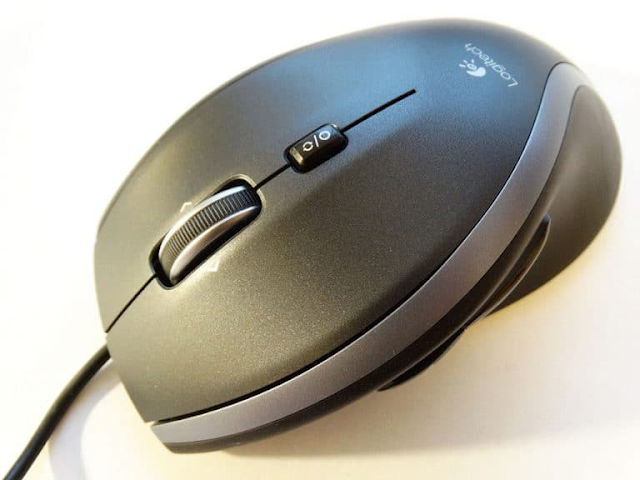
A mouse allows the user to move a pointer displayed on the monitor and experience a more intuitive interaction with the computer.

These days mice have more buttons than the common three.

The three main buttons, however, allows the user to select, grab, scroll and access extra menus and options.

A computer mouse can be wired or wireless. The latter obviously requires batteries.

You can take a look at my favorite mouse right here.

Optical mice of today allow for very accurate precision and smooth movement.

Common external peripherals

Here are some common peripherals that get connected to a computer and extends its usefulness.

Printer
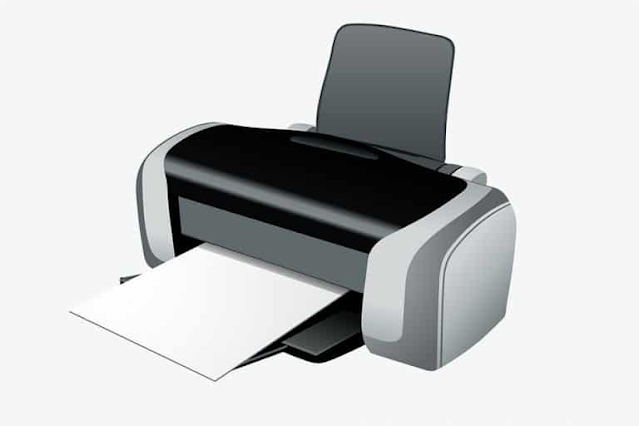
A printer can take an image sent by a computer and deliver it onto a sheet of paper.

It does this by using the data from the computer and by either using toner or ink, it deposits one of these in a controlled and accurate manner to form the image.

Scanner


A scanner can take anything on a piece of paper and scan it to produce a replicated digital image.

This is also very handy for saving physical photos that you want to preserve.

Once the photo is stored digitally, it won’t decay as a physical photo does over time.

Computer Speakers

Computer speakers can connect up to the sound card at the rear of the computer.

Another way they can be connected is by a monitor that already has built-in speakers.

Generally, the sound quality is poor from a monitor’ speakers. That’s why most people buy a set of computer speakers to have on their computer desk.

You can even connect up a 7.1 surround speaker system to certain sound cards.

This can add a nicer experience when it comes to gaming, playing music, or watching a film.


=======================================================

COMPUTER INSIDE OPERATIONS

How to create a Folder in your System?

1)Go to windows explorer by clicking folder icon in status bar
2)click on This Pc in left hand panel
3)Select the folder(like Desktop or downloads or documents or pictures or drive(C or D or E) and click on that folder or drive
4)rightclick on the right panel-->choose new in the panel-->click on folder option
5)provide a name for folder--press ENTER key from keyboard

\ --backward slash
/--forward slash
: --colon
; --semicolon
> --greater than
< --less than
? --questions

Brackets:
[] --square brackets
{} --curly brackets(press shift 
() --paranthesis(press shift 9 and 0)

_ --->underscore

How to Create file -text file 


rightclick in any folder inside-->new -->click on textdocument option
provide a name for the file.
what is the extension of text file?
.txt
filename.txt

How to open the file?
mouseover on the file
rightclick on the file
then choose the option--open

How to Create a microsfot word document?

rightclick in any folder inside-->new -->click on Microsfot office word document
then provide a file name.
What is the extension of microsoft word document?
.docx

How to Create an excelsheet in particular folder.?

navigate to the folder
rightclick in the folder-->new -->microsoft office excel worksheet
provide a name for excel sheet.
what is the extension of excel sheet?
.xlsx

How to Create a image file?
right click in any folder inside-->new -->click on bitmap image.
Then provide a name.

what are different image file extensions?
.png
           .jpeg or jpg
.bmp
.gif

how to create image file with microsoft paint?
in the windows search bar type the paint
double click on paint app ==then paint window will open to you.

how to save this paint file in particular folder?

Opening Paint -->Search paint from windows search bar at bottom left side-->Then type paint in search --click on paint app-->then draw something inside paint using tools
Click on file menu on top left side
click on save as 
go to the folder where you want to save like c:\Test
provide the filename in filename editbox
select save as type --either gif or jpeg or png
click on Save button


How to Download Files from Websites?

i)Open any browser(Google Chrome, firefox,Microsoft Edge or internetExplorer and Safari etc..)
ii)Type the website url in browser address bar
iii)Press ENTER key from keyboard
iv)choose the file to download-->click on download link
v)File will download to downloads folder

How to Move downloaded file to particular folder?

1)Go to the Downloads folder
2)select the file
3)right click on the file
4)choose cut option or Ctrl + x
5)go to the folder where you want to paste the file(if folder is not there create new folder)
6)right click on the folder
7)choose paste or Ctrl + v

How to UNZIP the ZIP File?

PreCondition: You should have ZIP file in your folder
i)Right Click on the Zipped Compressed file
ii)choose extract All option
iii)click on extract button
iv)Another file Folder will be created  with same zipped file name

How to Install Software in your System/laptop?

1)Download NotePad++ software
ii)Open the google.com in the browser
iii)type the notepad++ in search editbox
iv)press ENTER key from keyboard
v)Go to right website
vi)Choose the right version of the software
vii)Click on Downloads
viii)filename.exe is downloaded
ix)go to the downloads folder
x)double click on software application(.exe)
xi)open the windows application
xii)proceed the with installation

How to Uninstall Software in your System/laptop?

1)Type Control panel in bottom left side search bar -->Go to Control Panel
2)Click on Programs
3)click on Programs and Features
4)Select the software which you want to uninstall
5)Click on Uninstall
6)Do you want to uninstall completely-->click yes button
7)Proceed with uninstall process


APPIUM Tutorial

 What is APPIUM?

It is a widely used tool for Mobile Testing.

Appium is mobile web,native and hybrid software application test automation tool developed and suppoorted by sauce lab

It is open-source software automation tool which is useful to automate android and IOS platform apps.


Why we need Mobile?

Importance of Moblie:-

I want to pay my electricity bill.

I need to communicate with my manager and submit my reports urgently.

If you want to buy grocerys, clothes, book all tickets can do with mobile.

Now answer yourself. What do you need to perform these  activities in a fraction of seconds

with ->A smartphone,

        ->Internet connectivity 

         ->A mobile app to do the job.


 Various  Mobile OS(operating system)

      Operating system                       Developed by                                  Popularity

      Android                                      Google Inc                                          High

       IOS                                             Apple Inc                                            High

        BlackBerry                               BlackBerry Ltd                                    Low

        windows                                   Microsoft Inc                                      Medium

Types of Moblie Apps

 Mobile web Apple:


 -Web apps not real applications: they are actually websites that open in your smartphone

 with the help of a web browser.  Mobile websites have the broadest audience of all the primary types of applications.


 Native App

- A native app is developed specifically for one platform. It can be installed through an application store (such as Google play store or Apple's App Store).

Example- Whatsapp, Facebook, This app can use all the system application's(the apps which comes by default with your mobile)


Hybrid App

hybrid Apps are a way to expose content from existing websites in App format. They can be well described as a mixture of Web App and Native App

what is Appium?

Appium is mobile web,native and hybrid software application test automation tool developed and suppoorted by sauce lab

It is open-source software automation tool which is useful to automate android and IOS platform apps.

why Appium(Advantages)?

Cross platform:Android&ios:we can test native,hybrid,web app

Allows you to communicate with other apps,Ex:Whatsapp(Majority of tools doesn't support this)

No pre-compilation of your app

support for built-in app:alarm,phone,calendar etc

Any WebDriver compatible language is supported:Java,objective,C,Ruby,php,C#,:we just need language specific libraries to work on


Limitation of Appium:

For Android,No Support for Android API <17(for android v>4.1) if you mobile having less than 17 then we need to go for selendroid.

Script Execution is very slow on ios platform & android virtual devices

No support for Toast messages; we can handle this

no parallel execution directly:we can handle using sauce labs

APK:Android Application package.

IPA:Iphone Application package.


This is similar to .exe file which are used to install programs on windows.

The only difference is .apk file are designed to be used exclusivley on Android  devices

and you may be required to download addtional files before you run the appliacation

in the android.


Why we are using them what is the use?

we are going to test mobile appliacation means once after the application

was developed in android it will be apk file only.So to automate 

we need apk file, generally in real time we can get this apk file from 

the developer and for generic application we can download from playstor too.


What is Real Testing Device?

Testing on real device allows you to run your mobile apllication 

and checks its functionality.Real device Testing assures you that our appliacation

will work smoothly in customer handsets


What is Emulator and simulator?

Emulator and Simulator are virtual devices.A virtual is not the real

phone but software which gives same functionality as the real phone (Except few functionality like the camers


Android virtual devices :Emulator.

IOS virtual device: Simulator.

How Appium work?

  • When we install the Appium, a server is also installed with it on our machine that exposes the REST API.
  • It receives command and connection requests from the client and executes that command on devices like iOS or Android.
  • It replies with the HTTP responses.
  • To execute requests, it uses a mobile test automation framework to run the user interface of the app. For Example -
    • Apple instruments used for iOS
    • Selendroid used for Android API 15 or less
    • UIAutomator used for Android API 16 or higher


What are the locators in appium?

Id, Name, ClassName, XPath, AndroidUIAutomator,  AccessibilityId.

Status:

Retrieve the server’s current status:

driver.getStatus();

Session:

Create New Session:

IOS :
DesiredCapabilities dc = new DesiredCapabilities();
dc.setCapability(MobileCapabilityType.PLATFORM_VERSION, "10.3"); dc.setCapability(MobileCapabilityType.DEVICE_NAME, "iPhone Simulator"); dc.setCapability(MobileCapabilityType.AUTOMATION_NAME, "XCUITest"); dc.setCapability(MobileCapabilityType.APP, "/path/to/ios/app.zip"); URL url = new URL("http://127.0.0.1:4723/wd/hub");

IOSDriver driver = new IOSDriver(url, dc);

ANDROID:

DesiredCapabilities dc = new DesiredCapabilities();

dc.setCapability(MobileCapabilityType.AUTOMATION_NAME, "UIAutomator2");

dc.setCapability(MobileCapabilityType.DEVICE_NAME, "Android Emulator");

dc.setCapability(MobileCapabilityType.PLATFORM_VERSION, "11.0");

dc.setCapability(MobileCapabilityType.PLATFORM_NAME, "Android");

URL url = new URL("http://localhost:4723/wd/hub");


AndroidDriver<WebElement> driver = new AndroidDriver<WebElement>(url, dc);

End Session:

End running session:

driver.quit()

Get session capabilities:

Retrieve the capabilities of the specified session

Map<String, Object> caps = driver.getSessionDetails();

Take ScreenShot:

File scrFile = ((TakesScreenshot)driver).getScreenshotAs(OutputType.FILE);

Get PageSource:

Get the current application hierarchy XML (app) or page source (web)

String pageSource = driver.getPageSource();

Set TimeOuts:

Configure the amount of time that a particular type of operation can execute for before they are aborted

driver.manage().timeouts().pageLoadTimeout(30, TimeUnit.SECONDS);

Set Impilicit wait:

Set the amount of time the driver should wait when searching for elements

driver.manage().timeouts().implicitlyWait(30, TimeUnit.SECONDS);

SetScriptTimeout:

Set the amount of time, in milliseconds, that asynchronous scripts executed by execute async are permitted to run before they are aborted (Web context only)

driver.manage().timeouts().setScriptTimeout(30, TimeUnit.SECONDS);


Orientation:

Get Orientation:

Get the current device/browser orientation

ScreenOrientation orientation = driver.getOrientation();

Set Orientation:

Set the current device/browser orientation

driver.rotate(ScreenOrientation.LANDSCAPE);
driver.rotate(ScreenOrientation.PORTRAIT);
GeoLocation:
Get GeoLocation:

Get the current geo location

Location location = driver.location(); // Must be a driver that implements LocationContext

Set GeoLocation:

Set the current geo location

driver.setLocation(new Location(49, 123, 10)); // Must be a driver that implements LocationContext

Logs:
Get All Available Loges Types

Get available log types as a list of strings

Set<String> logTypes = driver.manage().logs().getAvailableLogTypes();

Get the log for a given log type. Log buffer is reset after each request

LogEntries logEntries = driver.manage().logs().get("driver");

LOG Events:

Store a custom event

CustomEvent evt = new CustomEvent(); evt.setEventName("funEvent"); evt.setVendor("appium"); driver.logEvent(evt);


Get Events:

Get events stored in appium server

driver.getEvents();

UPDATE Device SETTINGS:

Update the current setting on the device

driver.setSetting(Setting.WAIT_FOR_IDLE_TIMEOUT, 5000);

Retrive Device Settings:

Map<String, Object> settings = driver.getSettings();

Execute Driver Script:

Run a WebdriverIO script against the current session, allowing execution of many commands in one Appium request.

String script = "const el = await driver.$('~foo');\n" + "await el.click();"
driver.executeDriverScript(script, new ScriptOptions().withTimeout(200));


Robot Framework

 Robot Framework Introduction:

    Robot Framework is a generic automation framework for acceptance Testing.
    
    It has easy to use tabular syntax which utilizes the keyword driven testing approach.
    
    Libraries implemented Either with Python or Java.


How to Integrate Your GitHub Repository to Your Jenkins Project

 One of the basic steps of implementing CI/CD is integrating your SCM (Source Control Management) tool with your CI tool. This saves you time and keeps your project updated all the time. One of the most popular and valuable SCM tools is GitHub. In this blog I will explain how to integrate Jenkins with GitHub projects.


The integration presented in this blog post will teach you to:

  • Schedule your build
  • Pull your code and data files from your GitHub repository to your Jenkins machine
  • Automatically trigger each build on the Jenkins server, after each Commit on your Git repository


But first, let’s configure the GitHUb and Jenkins integration. Let's begin with the GitHub side!


Configuring GitHub


Step 1: go to your GitHub repository and click on ‘Settings’.


Step 2: Click on Webhooks and then click on ‘Add webhook’.


Step 3: In the ‘Payload URL’ field, paste your Jenkins environment URL. At the end of this URL add /github-webhook/. In the ‘Content type’ select: ‘application/json’ and leave the ‘Secret’ field empty.
Step 4: In the page ‘Which events would you like to trigger this webhook?’ choose ‘Let me select individual events.’ Then, check ‘Pull Requests’ and ‘Pushes’. At the end of this option, make sure that the ‘Active’ option is checked and click on ‘Add webhook’.


We're done with the configuration on GitHub’s side! Now let's move on to Jenkins.


Configuring Jenkins


Step 5: In Jenkins, click on ‘New Item’ to create a new project.


Step 6: Give your project a name, then choose ‘Freestyle project’ and finally, click on ‘OK’.


Step 7: Click on the ‘Source Code Management’ tab.


Step 8: Click on Git and paste your GitHub repository URL in the ‘Repository URL’ field.


Step 9: Click on the ‘Build Triggers’ tab and then on the ‘GitHub hook trigger for GITScm polling’. Or, choose the trigger of your choice.


That's it! Your GitHub repository is integrated with your Jenkins project. You can now use any of the files found in the GitHub repository and trigger the Jenkins job to run with every code commit.


For example, I will show you how to run a Selenium Test script that I uploaded to  GitHub repository from my Jenkins project.


Triggering the Jenkins Job to Run with Every Code Commit


Step 10: Click on the ‘Build’ tab, then click on ‘Add build step’ and choose ‘Top Level Maven Targets.


Step 11: To run a Selenium test, click on ‘Save’.
Step 12: Go back to your GitHub repository, edit the any test script and commit the changes. We will now see how Jenkins ran the script after the commit.
Step 13: Go back to your Jenkins project and you'll see that a new job was triggered automatically from the commit we made at the previous step. Click on the little arrow next to the job and choose ‘Console Output’.

Congratulations! Every time you publish your changes to Github, GitHub will trigger your new Jenkins job.


Once the GitHub plugin is fully installed and integrated into your Jenkins project, you have completed a very crucial step towards the full CI process. Now, you can proceed to the testing phase.